> ## Documentation Index
> Fetch the complete documentation index at: https://docs.routera.io/llms.txt
> Use this file to discover all available pages before exploring further.
# Phone numbers
> Purchase numbers, attach voice agents, and enable Branded Call for better outbound deliverability.
Phone numbers connect your [voice agents](/kb/create-voice-agent) to real inbound and outbound calls. After you buy a number, configure which agents answer calls in each direction and optionally enable **Branded Call** so recipients see your business name on outbound calls—improving answer rates and trust.
## Purchase a phone number
1. Open **Voice Agents** → **Phone Numbers** in the sidebar.
2. Click **Add Phone Number**.
3. Optionally enter a three-digit **area code**, then click **Next** to search (leave blank to browse all available numbers).
4. Select a number from the list to purchase it.
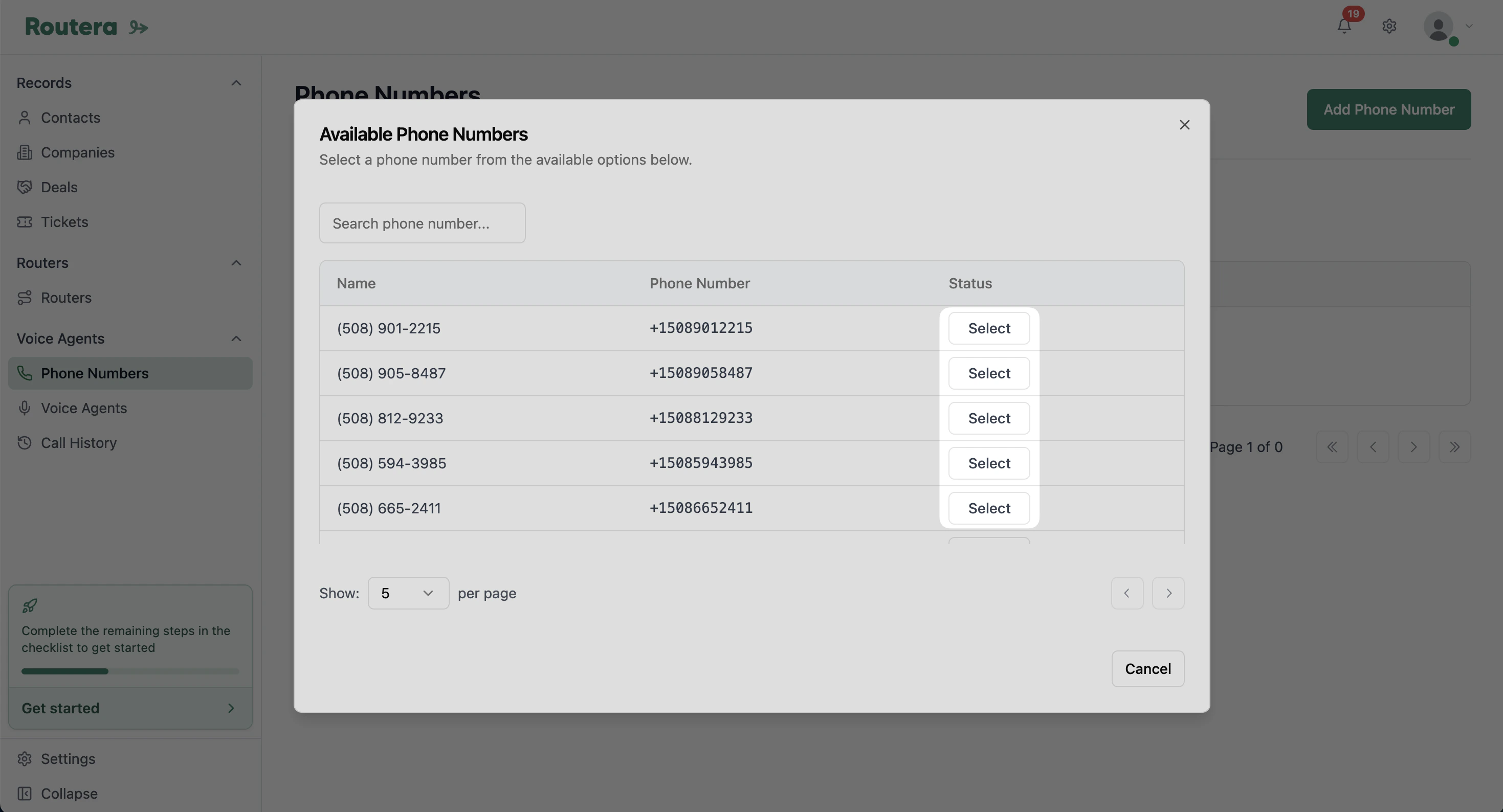 Numbers include a recurring monthly charge (billed through your workspace subscription). After purchase, open the number from the list to finish setup.
***
## Configure voice agents
Click the phone number in the list to open **Configure phone number**.
1. **Inbound voice agent** — handles incoming calls to this number.
2. **Outbound voice agent** — handles calls placed from this number (including **Make outbound call** tests).
3. Click **Save**.
You can use the same agent for both directions or assign different agents. Only **published**, active voice agents appear in the dropdowns.
Numbers include a recurring monthly charge (billed through your workspace subscription). After purchase, open the number from the list to finish setup.
***
## Configure voice agents
Click the phone number in the list to open **Configure phone number**.
1. **Inbound voice agent** — handles incoming calls to this number.
2. **Outbound voice agent** — handles calls placed from this number (including **Make outbound call** tests).
3. Click **Save**.
You can use the same agent for both directions or assign different agents. Only **published**, active voice agents appear in the dropdowns.
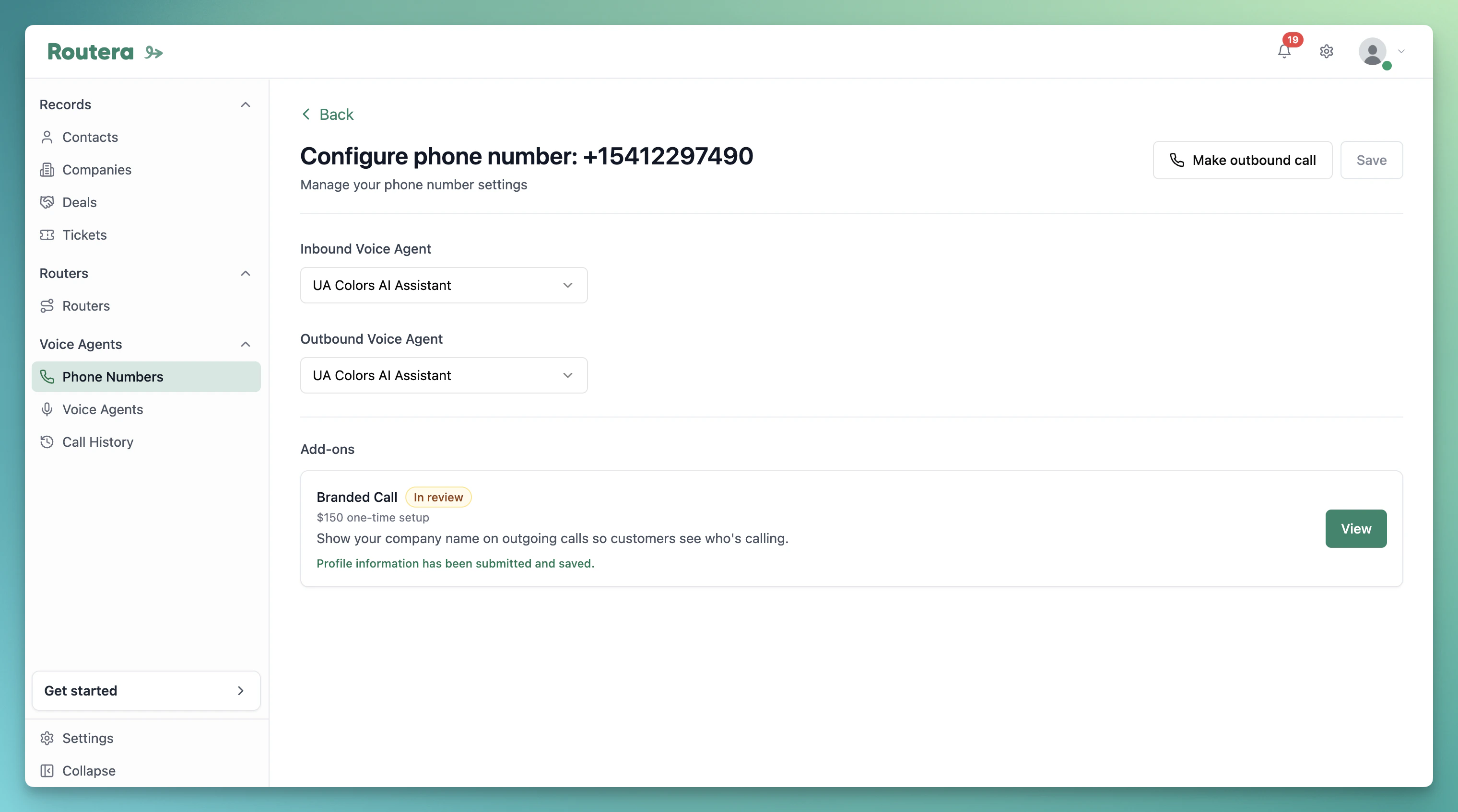 The list shows a status indicator when both inbound and outbound agents are set. Publish your agents in [Create voice agents](/kb/create-voice-agent) before attaching them here.
***
## Branded Call (call deliverability)
**Branded Call** registers your business with the carrier so **outbound** calls can display your company name instead of an unknown number. That helps answer rates and reduces the chance calls are ignored or flagged as spam.
On the phone number configuration page, under **Add-ons**:
1. Click **Enable** on **Branded Call** (\$150 one-time setup fee; charged when you submit).
2. Complete the three-step profile:
* **General information** — legal business name, profile friendly name, country, and business address.
* **Business Information** — business type, industry, registration ID, website, and regions of operation.
* **Point of Contact** — authorized contact for verification.
3. Submit the profile. Status appears on the card:
* **In review** — carrier is verifying your information.
* **Approved** — branding can be used on outbound calls from this number.
* **Rejected** — update details or contact support; use **View** to review what was submitted.
The list shows a status indicator when both inbound and outbound agents are set. Publish your agents in [Create voice agents](/kb/create-voice-agent) before attaching them here.
***
## Branded Call (call deliverability)
**Branded Call** registers your business with the carrier so **outbound** calls can display your company name instead of an unknown number. That helps answer rates and reduces the chance calls are ignored or flagged as spam.
On the phone number configuration page, under **Add-ons**:
1. Click **Enable** on **Branded Call** (\$150 one-time setup fee; charged when you submit).
2. Complete the three-step profile:
* **General information** — legal business name, profile friendly name, country, and business address.
* **Business Information** — business type, industry, registration ID, website, and regions of operation.
* **Point of Contact** — authorized contact for verification.
3. Submit the profile. Status appears on the card:
* **In review** — carrier is verifying your information.
* **Approved** — branding can be used on outbound calls from this number.
* **Rejected** — update details or contact support; use **View** to review what was submitted.
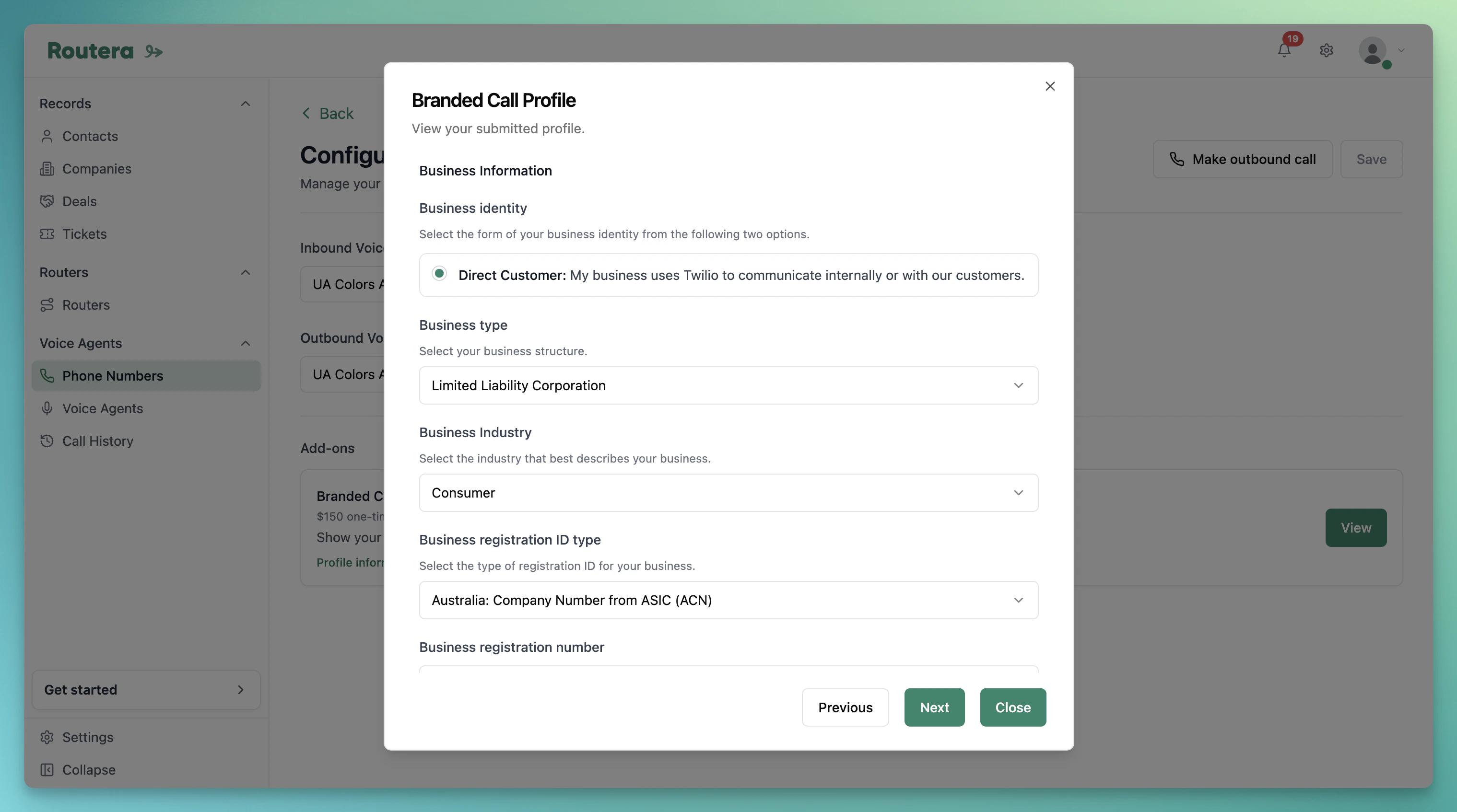 Branded Call requires billing on file (Stripe customer on the workspace). Use exact legal business details that match your registration documents. After submission, the form is read-only via **View** while the profile is processed.
Branded Call applies to **outbound** identity on this number. Inbound callers still see your number as usual; pairing with a clear **global prompt** and compliant calling practices improves overall deliverability.
***
## Test your setup
**Inbound** — Call the phone number from another line. The selected **inbound** voice agent should answer.
**Outbound** — On the configuration page, click **Make outbound call**, enter or select a destination number (or pick a contact with a phone on file), and place a test call. The **outbound** voice agent runs the conversation.
Branded Call requires billing on file (Stripe customer on the workspace). Use exact legal business details that match your registration documents. After submission, the form is read-only via **View** while the profile is processed.
Branded Call applies to **outbound** identity on this number. Inbound callers still see your number as usual; pairing with a clear **global prompt** and compliant calling practices improves overall deliverability.
***
## Test your setup
**Inbound** — Call the phone number from another line. The selected **inbound** voice agent should answer.
**Outbound** — On the configuration page, click **Make outbound call**, enter or select a destination number (or pick a contact with a phone on file), and place a test call. The **outbound** voice agent runs the conversation.
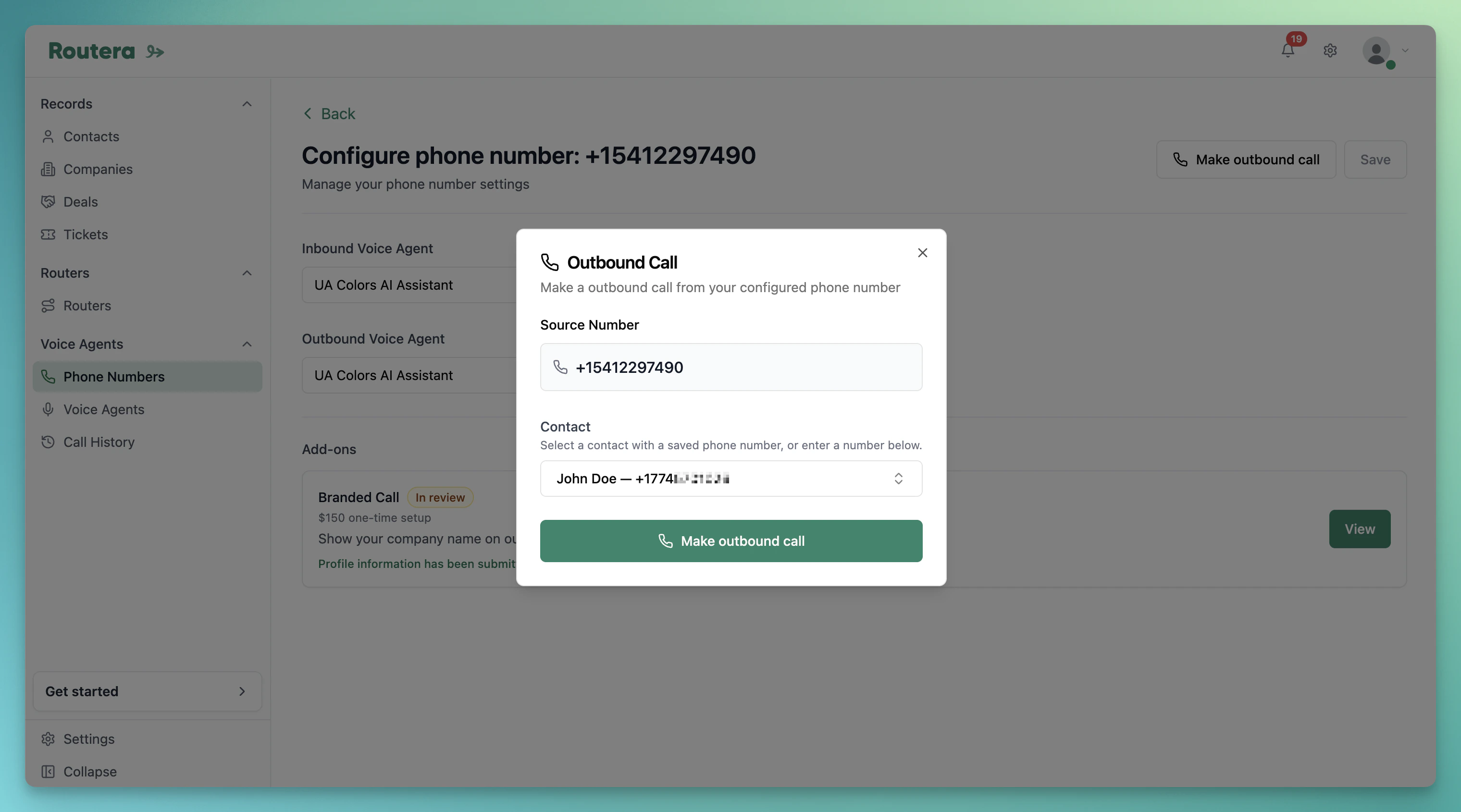 Finish [Create voice agents](/kb/create-voice-agent) (global prompt, tools, publish) before attaching agents. Enable **Branded Call** when you are making outbound calls to customers who do not already have your number saved.